

Using diffs to compare metadata
Before you deploy, or simply want to see how two environments differ, mtdt lets you compare metadata side by side and see exactly what has changed
Before you deploy, or simply want to see how two environments differ, mtdt lets you compare metadata side by side and see exactly what has changed
How it works
Running a comparison
Simple steps to compare metadata
-
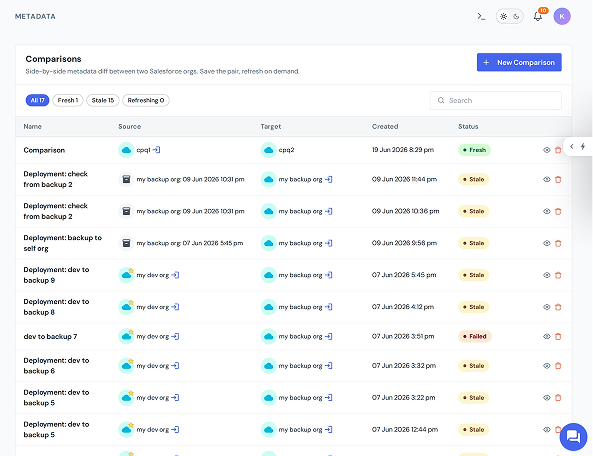
 Open Comparisons and choose your two sides (source and target).
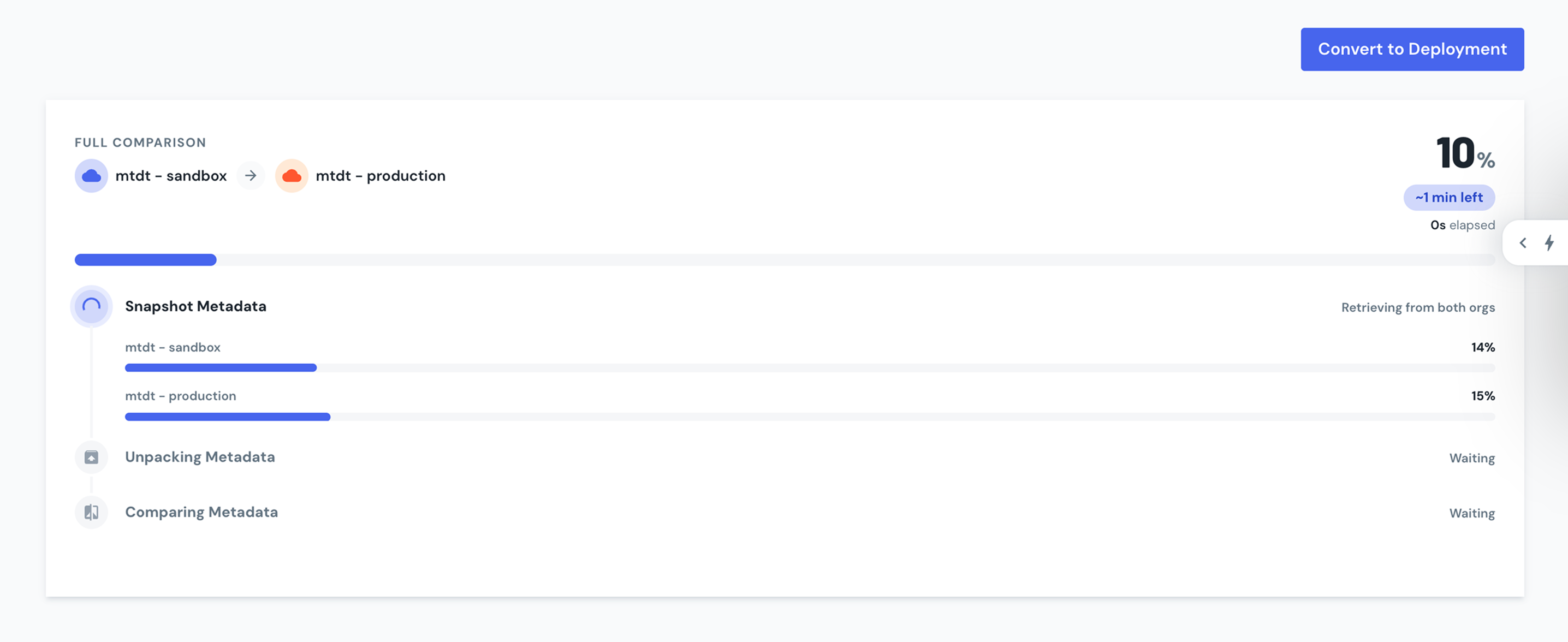
 - Start a full comparison: all metadata types are included automatically
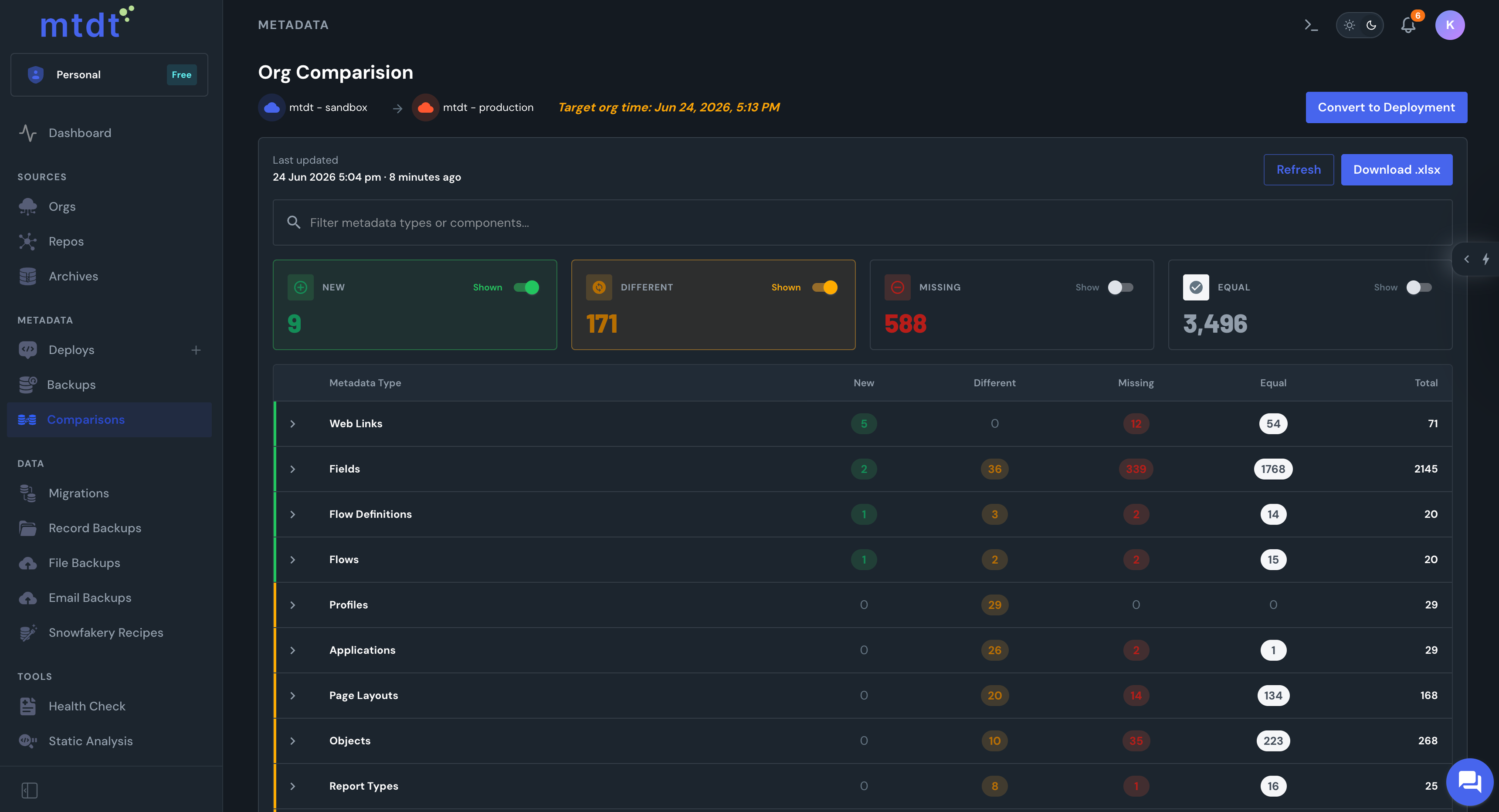
- mtdt retrieves both sides and shows you a comparison table per type per item: added, removed, changed, or identical
Forget about false differences caused by formatting or element order. mtdt normalizes metadata before comparison, so you see only the real differences.
Only real differences

compare Salesforce metadata without reading XML
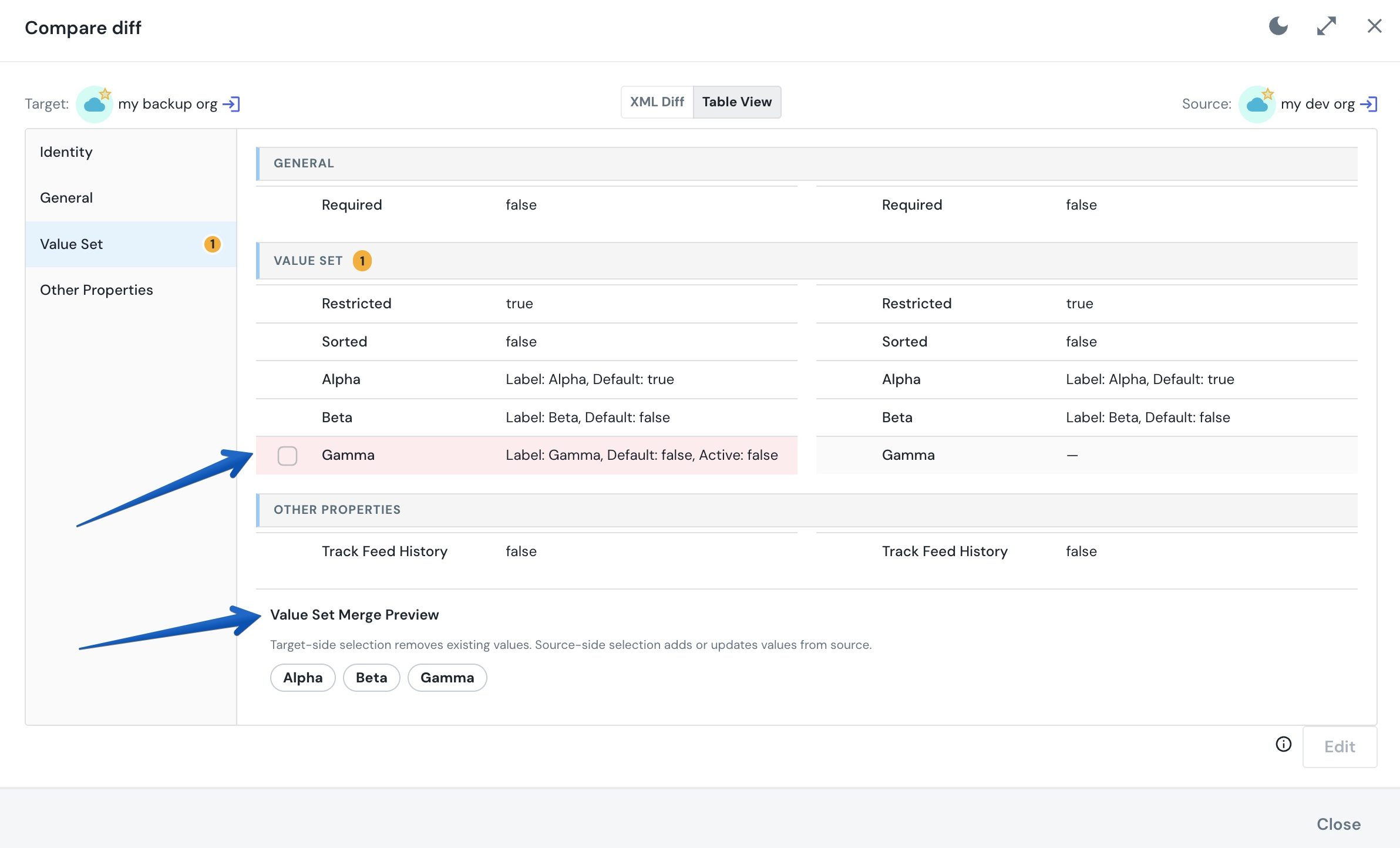
See the diff as a structured, clickable view
A per-property diff with a source and target side and a checkbox on each row, so you can see (and select) exactly which properties differ. Toggle it with the XML Diff / Table View switch in the compare dialog header.
Table View
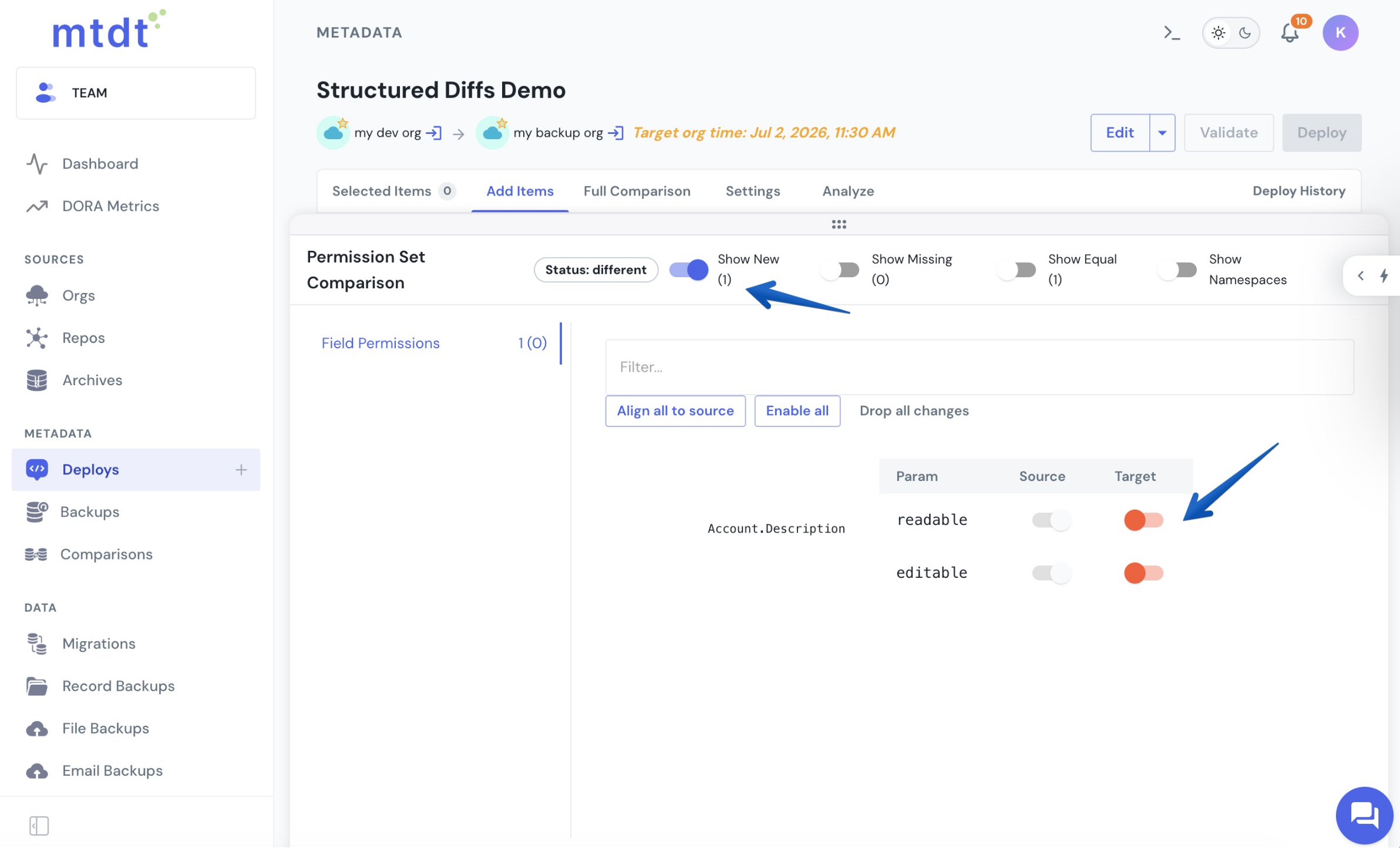
For profiles and permission sets, the diff opens straight into a row-per-permission grid: each object, field, tab, and record-type permission is a row, with a read-only Source column and an editable Target toggle. Flipping a Target toggle marks that one permission as an override, you tune access by clicking rows, not by hand-editing a profile's XML.
Permission manager
frequently asked questions
Find answers to common questions about the mtdt metadata comparison features
An XML diff compares metadata as raw text, while a metadata diff compares the structure and properties of Salesforce components. This makes meaningful changes easier to spot and reduces noise from formatting, whitespace, or element ordering.
Focus on added, removed, and changed components, as well as differences in permissions, fields, layouts, and other configuration properties. For deployments, also check for dependencies between metadata components.
Yes. For supported metadata types, mtdt provides structured, human-readable comparison views instead of requiring you to inspect raw XML. Table View shows differences property by property, while profiles and permission sets use a permission-manager grid.
For a reliable and efficient metadata comparison, compare your Salesforce environments before every cross-environment deployment to identify potential differences before they reach production. Narrow the comparison to the metadata types relevant to your current changes for a faster, more focused review. You can also turn off Equal to hide matching components and focus only on the metadata that actually differs.
Yes. mtdt allows you to selectively deploy metadata differences instead of deploying the entire component. In Table View, select the specific properties you want to deploy. In the permission-manager grid, enable the target toggles for the permissions you want to change. Only the selected changes are deployed, while the remaining component stays unchanged.
contact us
Have questions? We’re here to help!